Essential Windows Settings
5 minutes of setup to prevent 90% of connection problems.
Skipping these settings causes terminals to randomly disconnect and lose customer sessions!
🌐 Fix #1: Set Static IP (2 minutes)
The Problem: Dynamic IP = Terminals can't find server when it restarts
The Solution: Lock your server IP address

Quick Steps:
-
Open Network Settings
- Right-click network icon → Open Network Settings
- Click "Change adapter options"
-
Configure IP
- Right-click your connection → Properties
- Select "Internet Protocol Version 4 (TCP/IPv4)" → Properties
- Choose "Use the following IP address"
-
Enter Details
IP address: 192.168.1.100 (or similar)
Subnet mask: 255.255.255.0
Default gateway: 192.168.1.1 (your router) -
Save & Test
- Click OK → Restart network
- Test: Open cmd →
ping 192.168.1.100
- Choose an IP outside your router's DHCP range
- Common ranges: 192.168.1.100-200 or 192.168.0.100-200
- Write down the IP - you'll need it for terminal setup!
💤 Fix #2: Disable Sleep Mode (1 minute)
The Problem: Server sleeps = All terminals lose connection
The Solution: Keep server awake 24/7
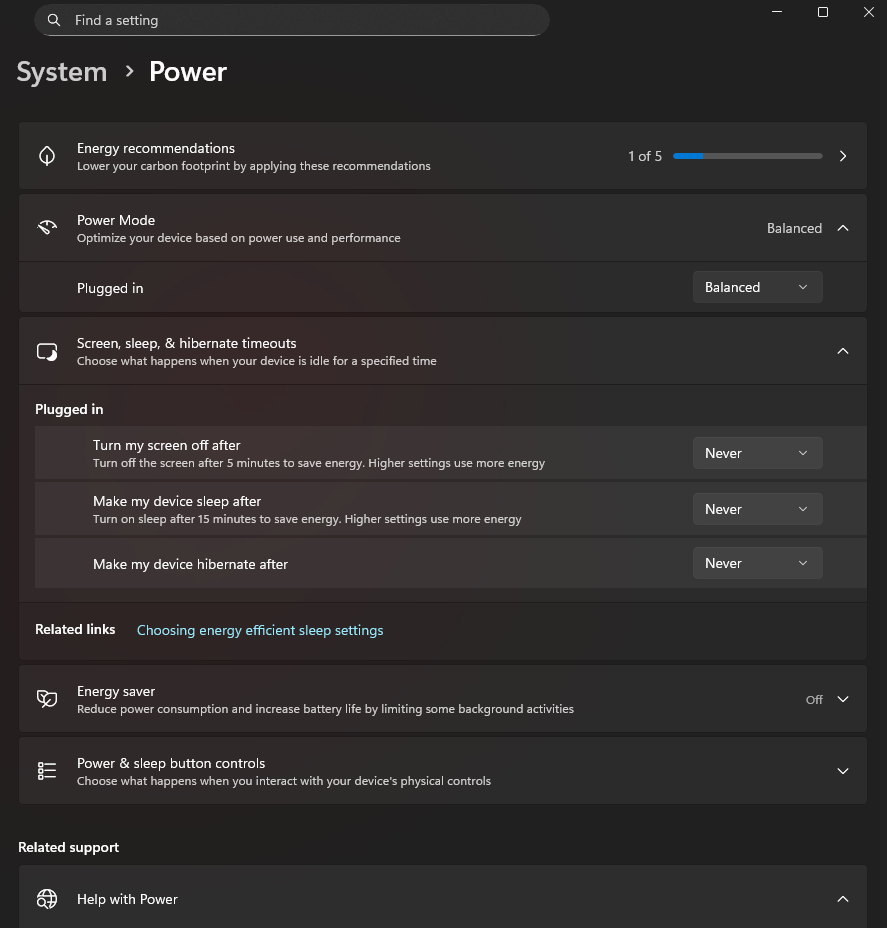
Quick Steps:
-
Open Power Settings
- Search "Power" → Click "Power & sleep settings"
-
Set to Never Sleep
- Sleep (when plugged in): Never
- Screen timeout: 15 minutes (optional)
-
Advanced Settings (Optional)
- Additional power settings → Change plan settings
- Turn off hard disks: Never
- Hibernate after: Never
⚡ Fix #3: Prevent Auto-Restart (1 minute)
The Problem: Windows updates restart server during business hours
Quick Steps:
-
Set Active Hours
- Settings → Update & Security → Windows Update
- Change active hours: 8 AM to 11 PM (your business hours)
-
Schedule Restarts
- Advanced options → Choose restart time: 3 AM daily
🔄 Fix #4: Auto-Start After Power Loss (1 minute)
The Problem: Power cut = Server doesn't restart automatically
BIOS Configuration:
- Enter BIOS (F2/DEL during startup)
- Find Power Management
- Enable "Restore on AC Power Loss"
- Save & Exit
Some PCs call this "Auto Power On" or "AC Recovery" - same feature!
✅ Verification Checklist
After configuring, verify these work:
Network Test:
- Server IP is fixed (doesn't change after restart)
- Terminals can ping server IP
- Internet still works on server
Power Test:
- Server doesn't sleep during idle time
- Windows updates scheduled for off-hours
- Server starts automatically after power cut
🚨 Common Issues
"Can't Set Static IP"
Cause: Network controlled by group policy
Fix: Contact IT administrator or use different network
"IP Conflict Detected"
Cause: Another device using same IP
Fix: Choose different IP (try .101, .102, etc.)
"No Internet After IP Change"
Cause: Wrong gateway or DNS
Fix: Use your router's IP as gateway (usually .1)
🎯 Pro Tips
Document Everything:
- Write down your server IP address
- Note any special network settings
- Keep admin passwords secure
Test Thoroughly:
- Restart server and verify IP stays same
- Test terminal connections after changes
- Verify internet still works for updates
Plan for Problems:
- Keep these settings documented
- Train staff on basic network troubleshooting
- Have IT support contact ready
⚠️ Skip these steps at your own risk!
95% of "random disconnection" support calls are caused by incorrect Windows settings.