Settings: Configuring Your Café's Operations
The Settings page serves as the control panel for your entire Olympus system, organized into multiple tabs for easy navigation and configuration.

Applications Tab
Manage the games and applications available on your terminals, controlling what users can access during their sessions.
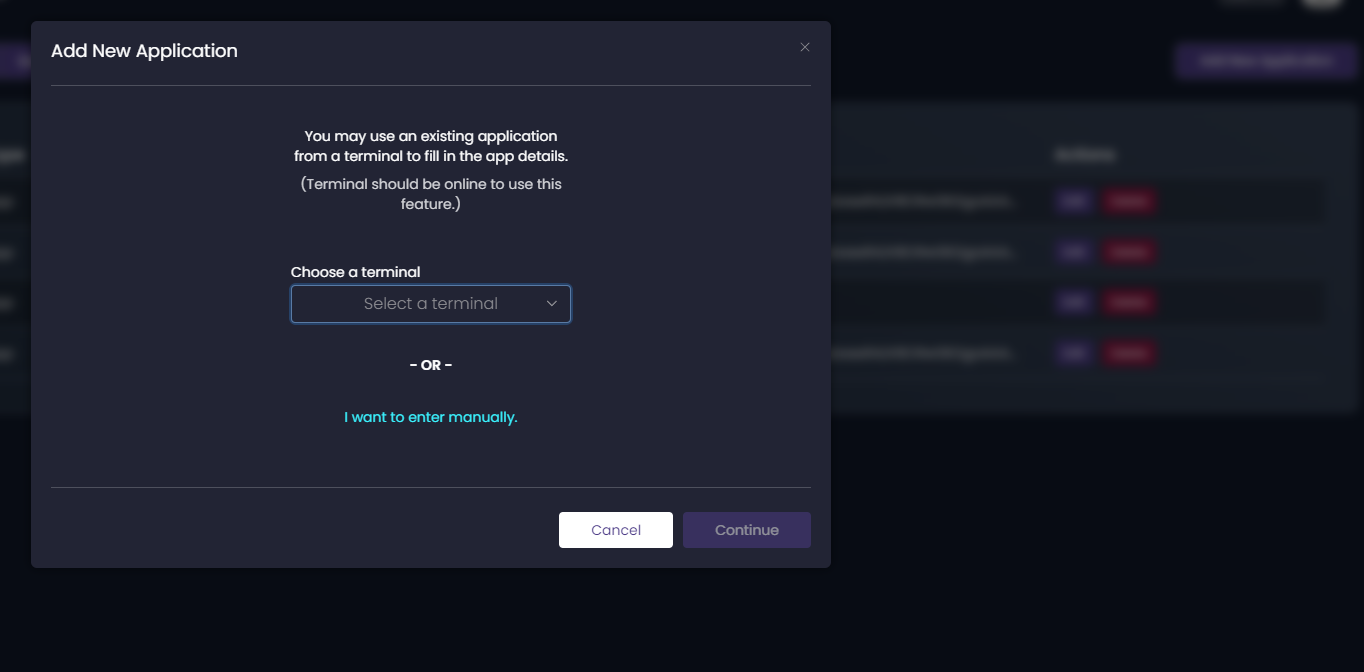
Adding Applications
You have two methods to add applications:
Method 1: Auto-fill from Terminal
Select an active terminal to automatically detect installed applications:
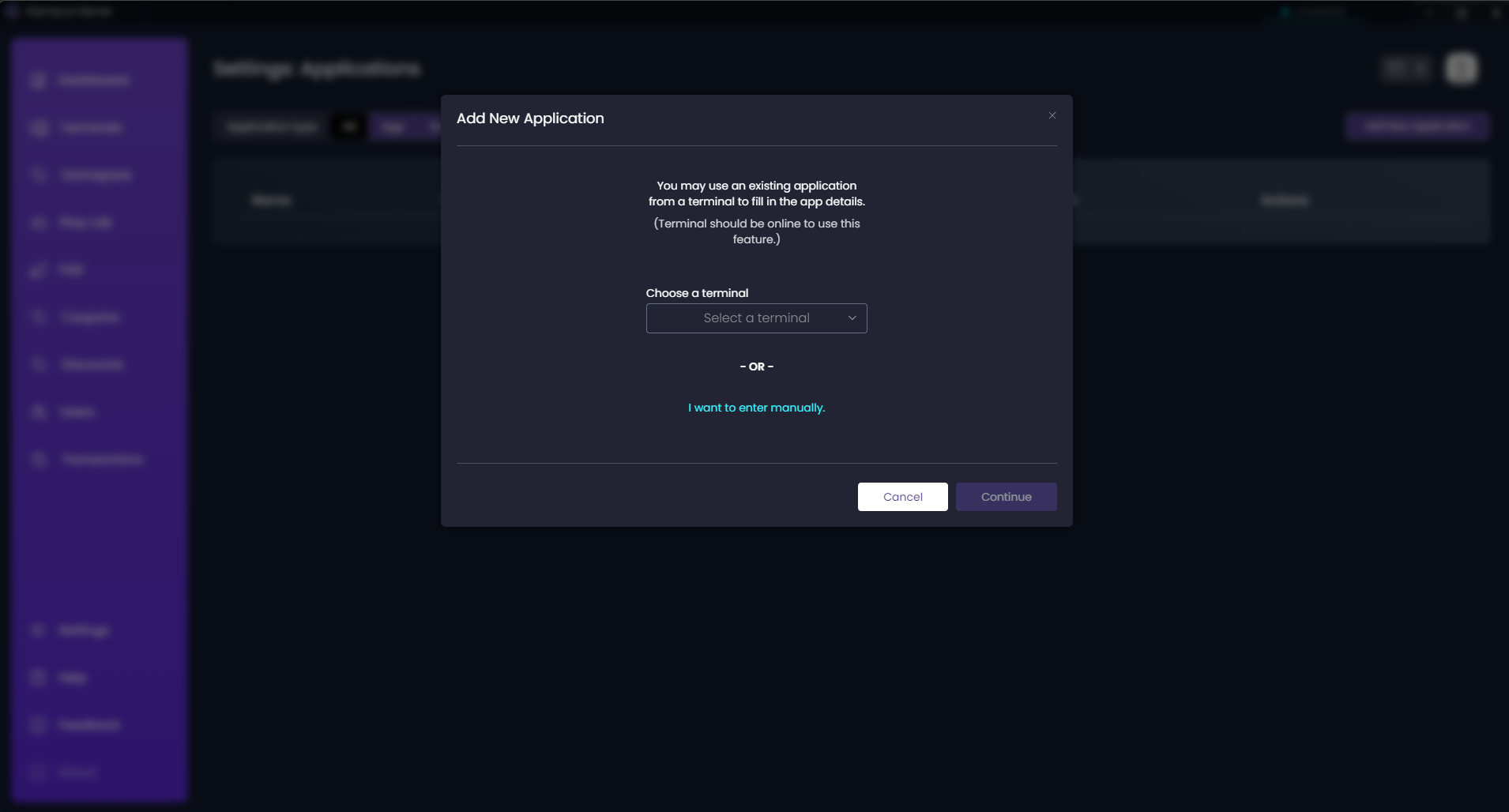
- Click "Add from Terminal"
- Select a terminal with the desired application running
- The system auto-detects application details
- Review and confirm the information
- Save to add to your application library
Method 2: Manual Entry
Add applications by entering details manually:
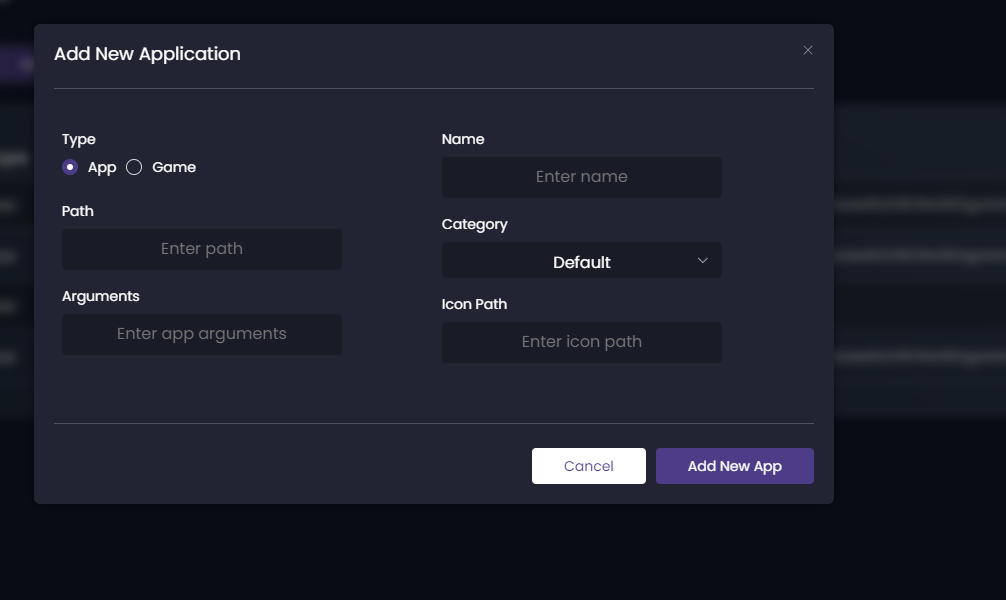
For Standard Applications:
- Application Name: Display name for users
- Executable Path: Location of the .exe file
- Icon: Upload application icon
- Category: Productivity, Internet, Media, etc.
- Restrictions: Age rating or access controls
For Games:
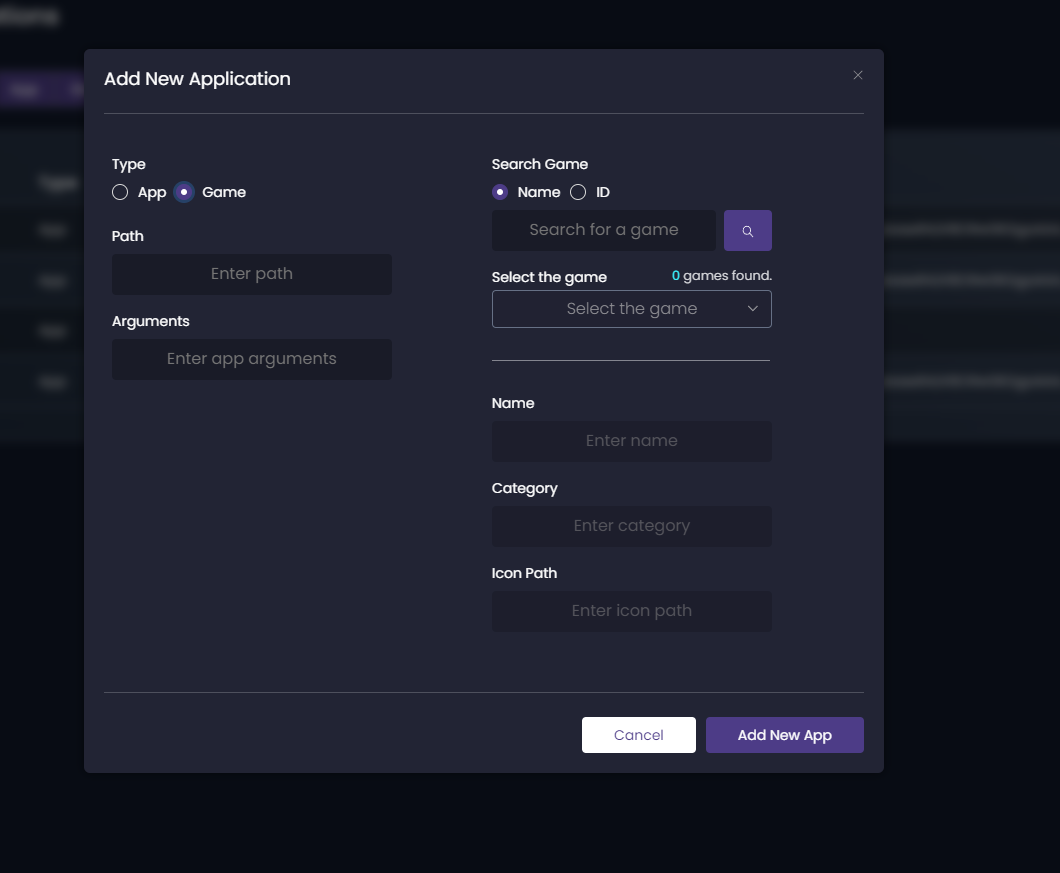
- Game Title: Search or enter manually
- Platform: Steam, Epic, Origin, etc.
- Genre: FPS, MOBA, RPG, etc.
- Age Rating: ESRB/PEGI rating
- Multiplayer: Online/Offline/Both
Application Management
Allowed Lists:
- Create different application sets for terminal types
- Set time-based restrictions
- Configure age-appropriate content
Blocked Applications:
- Prevent access to specific programs
- Block system utilities
- Restrict administrative tools
License Tab
View and manage your Olympus software license information.
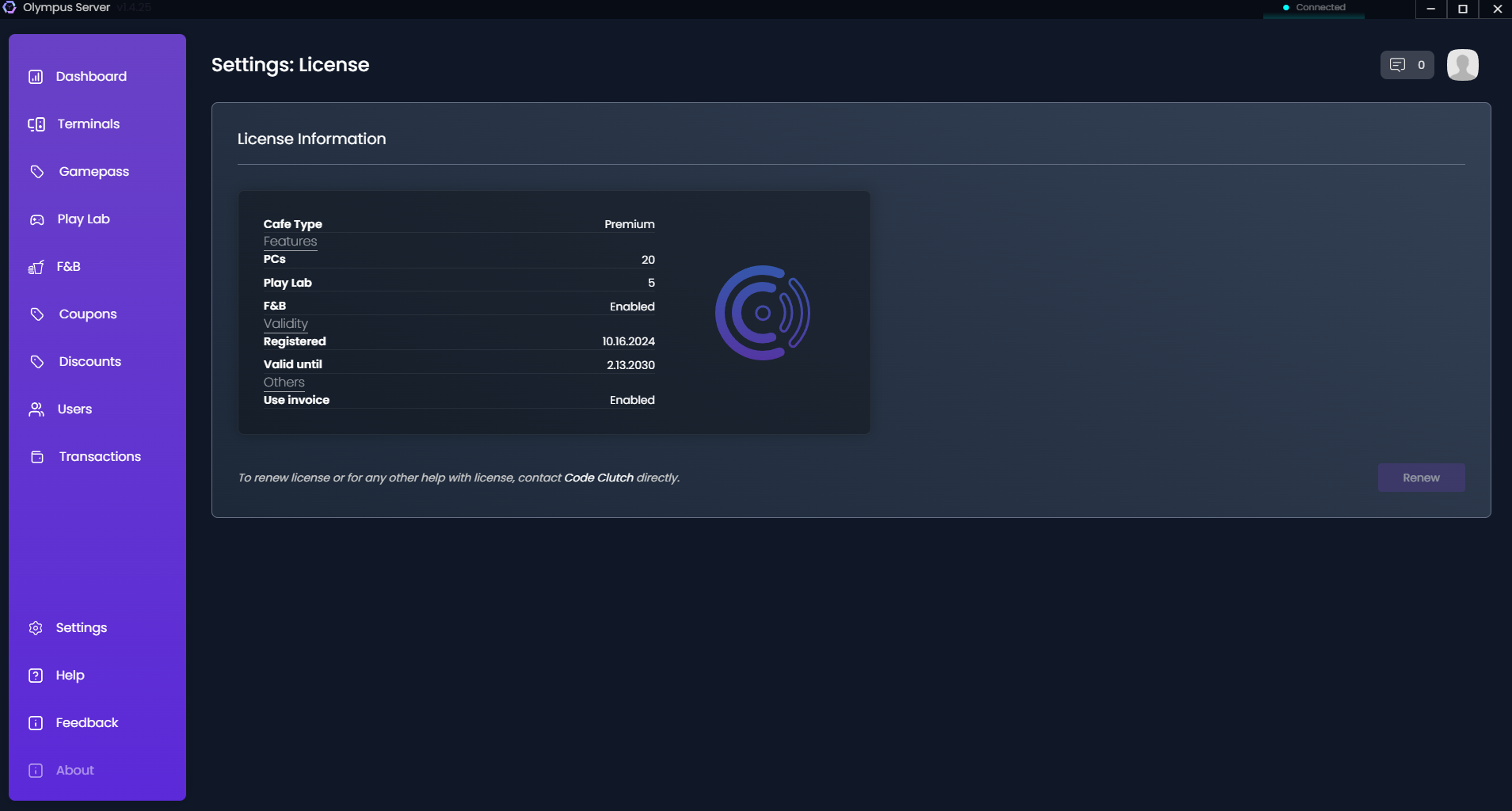
License Information Displayed:
- License Key: Your unique identifier
- Plan Type: Your subscription tier
- Validity: Start and expiration dates
- Terminal Limit: Maximum terminals allowed
- Features: Enabled modules and features
- Renewal Status: Days remaining
License Actions:
- Renew License: Extend validity period
- Upgrade Plan: Move to higher tier
- Add Terminals: Increase terminal limit
- View History: Past renewals and changes
Payments Tab
Configure online payment gateway integrations for digital transactions.
Supported Payment Gateways:
Razorpay Integration:
- Enter API Key ID
- Enter API Secret Key
- Configure webhook URL
- Test connection
- Enable for production
Other Gateways:
- PayU configuration
- Paytm integration
- Custom gateway setup
Payment Settings:
Transaction Preferences:
- Minimum transaction amount
- Maximum transaction limit
- Auto-capture settings
- Refund permissions
Settlement Configuration:
- Settlement cycle
- Bank account details
- Tax invoice generation
- Commission settings
Others Tab
Miscellaneous system settings and configurations.
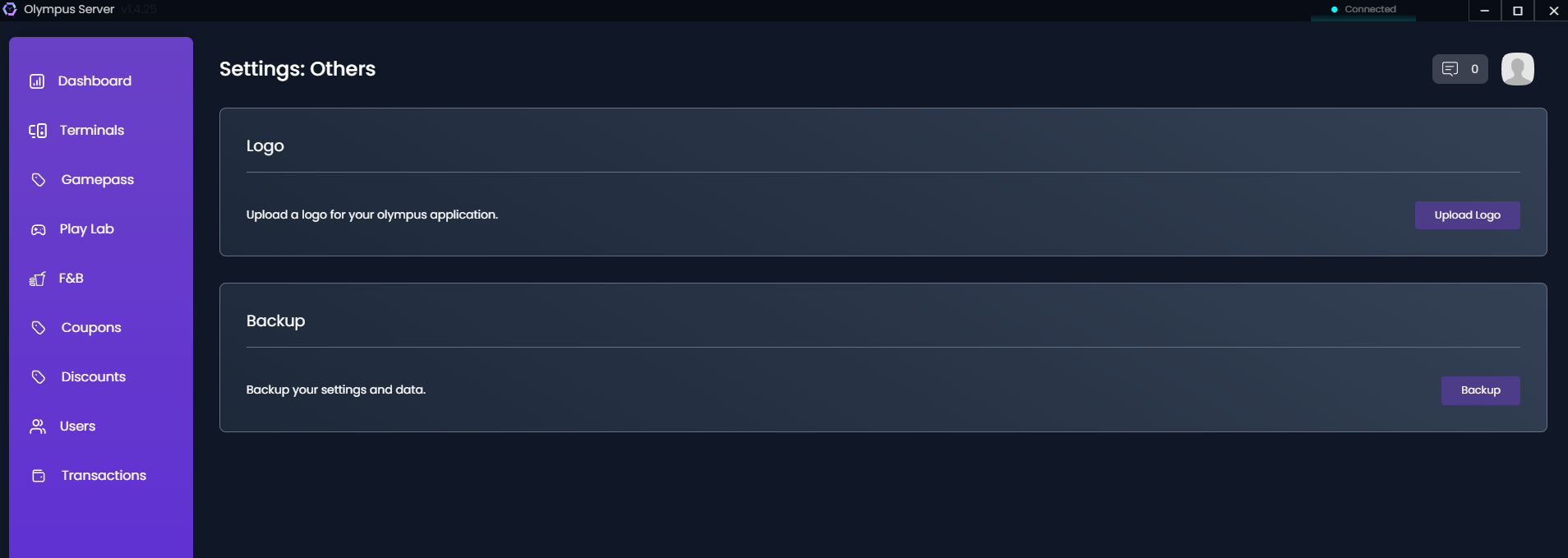
Logo Customization
Upload your café's branding:
- Logo Image: PNG/JPG format
- Display Locations: Login screen, receipts, reports
- Size Requirements: Minimum 200x200px
- Transparency: Support for transparent backgrounds
Backup Settings
Configure data backup preferences:
Automatic Backup:
- Frequency: Daily, Weekly, Monthly
- Time: Schedule backup time
- Location: Local or cloud storage
- Retention: Number of backups to keep
Manual Backup:
- Create instant backup
- Download backup file
- Restore from backup
- Verify backup integrity
System Preferences
Regional Settings:
- Currency symbol and format
- Date and time format
- Language preference
- Timezone configuration
Display Settings:
- Terminal grid layout
- Color themes
- Dashboard widgets
- Notification preferences
Advanced Configuration
Network Settings
Server Configuration:
- IP address binding
- Port configuration
- SSL certificate
- Firewall rules
Terminal Communication:
- Heartbeat interval
- Timeout settings
- Reconnection attempts
- Bandwidth optimization
Security Settings
Access Control:
- Password policies
- Session timeout
- Two-factor authentication
- IP restrictions
Audit Settings:
- Log retention period
- Audit trail detail level
- Alert configurations
- Compliance reports
Performance Tuning
Database Optimization:
- Auto-cleanup schedules
- Index maintenance
- Cache settings
- Query optimization
Resource Management:
- Memory allocation
- CPU priority
- Disk usage limits
- Network bandwidth
Troubleshooting Settings
Debug Options
Logging Levels:
- Error only
- Warning and above
- Information
- Debug (verbose)
Diagnostic Tools:
- Connection tester
- Database checker
- License validator
- System health monitor
Reset Options
Partial Reset:
- Clear cache
- Reset preferences
- Restore defaults
- Rebuild indexes
Factory Reset:
- Complete system reset
- Requires license re-entry
- Backs up data first
- Confirmation required
Best Practices
Regular Maintenance
-
Weekly Tasks:
- Review application list
- Check backup status
- Update payment settings
- Verify license validity
-
Monthly Tasks:
- Audit security settings
- Optimize database
- Update logo/branding
- Review system logs
Security Recommendations
-
Strong Authentication:
- Complex passwords
- Regular password changes
- Different admin accounts
- Access logging
-
Data Protection:
- Regular backups
- Encrypted storage
- Secure connections
- Limited access
Performance Tips
-
Optimize Settings:
- Appropriate cache sizes
- Efficient log retention
- Balanced resource allocation
- Regular cleanup
-
Monitor Usage:
- Track setting changes
- Document configurations
- Test before applying
- Keep default backups